|
MidiIllustrator Player Version 4.00 |
| New Feature |
Description |
| Free MidiIllustrator
Player |
Updated to support all the new features in scores
created using MidiIllustrator Virtuoso and MidiIllustrator Maestro Version
4.00 |
MidiIllustrator Virtuoso Version 4.00
- and -
MidiIllustrator Maestro Version 4.00 (see Maestro only functions
below
 )
) |
| New Feature |
Description |
| MusicXML Import |
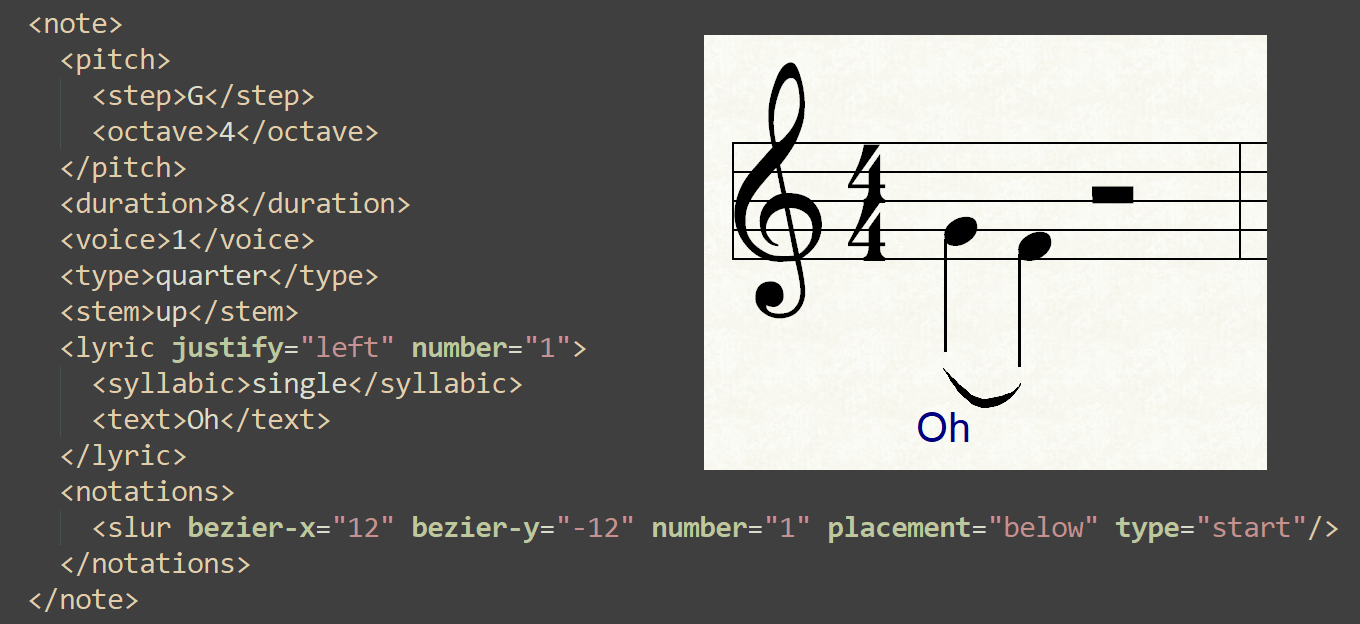
MidiIllustrator 4 supports the import of the popular MusicXML
format, allowing MidiIllustrator users to access another source of high quality music
alongside the huge numbers of MIDI files available. All versions of MusicXML are supported as are compressed MusicXML
scores in the .mxl format. Unicode MusicXML content is supported.
Like MidiIllustrator's own .mil format, MusicXML files can store more
specific notation information than the MIDI format (e.g. slurs, note colors and
fingering).
Additionally, scores created in other music programs supporting MusicXML can
now be easily opened in MidiIllustrator.
Many features of MusicXML are implemented in this release with more to come.
The MidiIllustrator installation includes a selection of example MusicXML
scores.

|
 |
| Individual Note Colors
Individual Rest Colors
Note Stem/Flag/Beam Color Options |
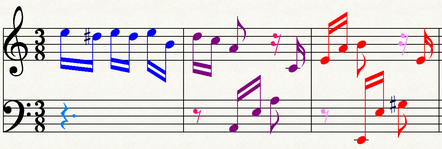
With this much requested feature, it is now possible to color notation however you wish for
study, teaching or any other purpose. Like MidiIllustrator's own .mil format
which stores note colors, MidiIllustrator will also display notation coloring
from imported MusicXML scores.
In addition to assigning custom colors to
notes, you can opt to have any notes with a
custom color assigned drawn with their
stems and flags and beams drawn in the same custom color instead of the default note
color. |
 |
| Color Notes by Pitch |
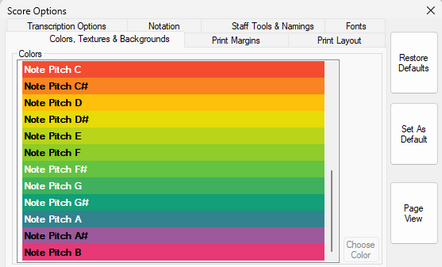
MidiIllustrator can now automatically color notes
by their pitch, serving as a significant visual learning aid. This feature
builds on the new 'Individual Note Colors' feature. Pitch colors are fully customizable
and can be saved with each score.
 |
 |
| Layout Mode: New Measure/System
Line Break Controls |
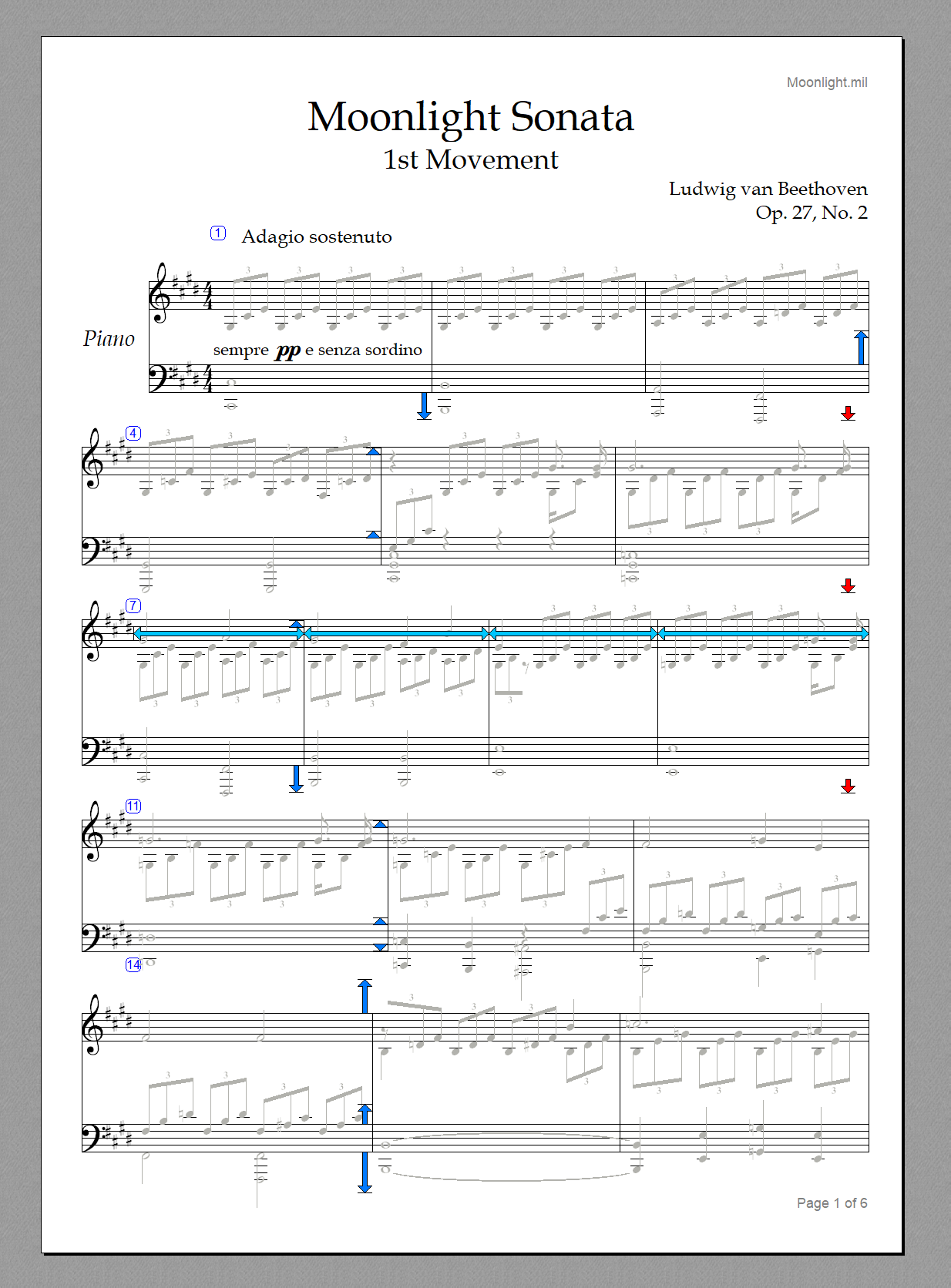
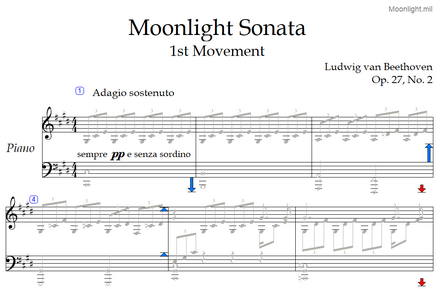
Version 4 adds manual line breaks to
Layout Mode giving much greater control over score
presentation/printing. Line breaks can be easily added to Measures/Systems to
complement MidiIllustrator's automatic handling of page layout. Combine manual
breaks and score dimension edits with the automatic formatting of
Layout Mode to efficiently achieve the best use of score 'real estate'. |
 |
|
| Custom
Instrument Tuning |
In version 4 you can set a
Custom Instrument Tuning
value (an alternative to the default concert pitch tuning of A = 440 Hz) for
each instrument on each staff using the MIDI
Configuration Tab of Staff Manager.
Tune your score playback to your instrument/band!
|
 |
| Dark Mode |
Dark mode modifies the user interface to reduce light emitted by
your device
screen while maintaining the minimum colour contrast ratios required for
readability. Dark mode also results in a reduction of 'blue light' emitted
(better if you're working with your music in the hours before sleeping!).
You can also customize all the colors used to display
your scores (page color, notation color etc.). |
 |
|
Playback: New
Audition/Rewind Option |
New command/shortcut to have the playback cursor
rewind to the previous score position after playback ends or is stopped
manually. More efficient for studying certain passages as you don't have
to find your previous place in the score. |
|
| New Playback Cursor Options |
The cursor can now be displayed behind the notation during
playback to improve notation legibility. |
|
| Staff Tools Improved |
Staff tools have been updated to be larger and clearer. |
 |
|
Editing improvements
|
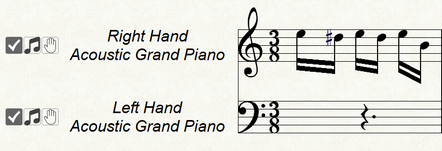
Special handling of rest selection with Mouse when inserting notes.
Toggle the mouse selection of rests, allowing faster note pitch selection even if there is a selectable rest under the mouse. |
|
| Unicode versions of MidiIllustrator Maestro, Virtuoso
and Player |
From version 4, MidiIllustrator's Unicode builds
can store, process and display characters in any language. MusicXML scores
encoded in Unicode are of course supported. The foundation for multilingual
computing, Unicode is universally accepted by computing platforms, browsers and
mobile devices, enabling seamless handling of text across diverse
languages. |
 |
| Zooming Shortcuts
Improved |
Added 'Mouse Wheel+Control' Zoom command for improved
usability, in keeping with widely used applications such as Web browsers.
(Mouse Wheel alone scrolls through score pages as in previous versions). |
|
| Toolbar Updates |
Toolbars images have been overhauled with a cleaner
look. |
|
| Redesign of Many Key Interfaces |
Key interfaces/dialogs such as the
Launch Screen,
Staff Manager, and many other parts of the UI have been rescaled and improved.
Changes include better handling of custom DPI settings. |
|
| More Score Samples Included |
The MidiIllustrator installation now includes a selection of example MusicXML
scores. |
|
| MIDI import improvements |
- New MIDI import functions address a number of import limitations.
- Better MIDI Unicode name string handling.
- Better handling of long MIDI text events.
- Better handling of text event saving to MIDI.
|
|
| Windows Versions |
Full compatibility with the latest Windows
operating systems, Windows 11 and Windows 10. |

 |
|
MidiIllustrator Player Version 3.00 |
| New Feature |
Description |
| Free MidiIllustrator
Player |
Updated to support all the new features in scores
created using MidiIllustrator Virtuoso and MidiIllustrator Maestro Version
3.00 |
MidiIllustrator Virtuoso Version 3.00
- and -
MidiIllustrator Maestro Version 3.00 (see Maestro only functions
below
) |
| New Feature |
Description |
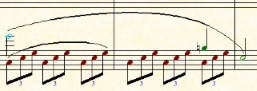
| New composing feature: Slurs
|
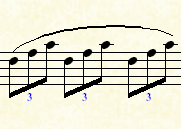
Slurs are quick and easy to add and
unlike other composing software, MidiIllustrator automatically manages the path of each slur you create in the score
making them easy to "set and forget" as you add and edit notation around each slur.
Automatic recalculation of the slur gives you the best looking notation in the
shortest time.
|
 |
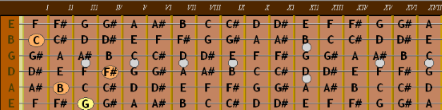
| On-Screen Guitar
Fretboard |
The On-Screen Guitar Fretboard will highlight notes and chords from the current
score. It can be used as an aid to reading and playing the score allowing you to
quickly and easily visualize chord shapes and fingering. The
On-Screen Guitar Fretboard Colors are
fully customizable and can be
configured with the Fretboard Options tab in
the Program Options dialog. |
 |
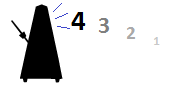
| Speaking
Metronome |
When the Speaking Metronome is enabled, the
metronome will count the beats out loud using a human voice instead of the
Metronome Instrument. This is especially useful when learning rhythm. |
 |
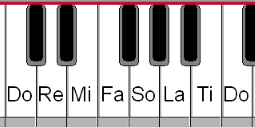
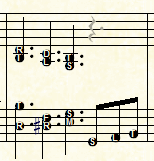
| Display Solfege Note Names |
Displays Solfege names for instruments and score
note names. |
  |
| Copy
Chord Names to Lyrics |
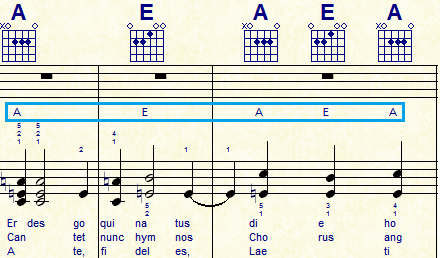
This much requested feature will allow you to copy
any chord names to the
lyrics of the first staff in the score.
In some cases it is desirable to show chord names beneath the staff in this way
but moreover it is possible to export these new chord lyrics by saving the score
as a MIDI file, as the MIDI format can store lyrics but not chord information.
Other music software programs and some advanced digital keyboards can then
display chords (in the lyrics) generated by MidiIllustrator, when importing a
MIDI file.
|
 |
| Beat
Marker Numbers |
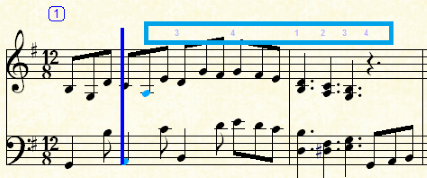
A major improvement to the existing beat markers,
Beat Marker Numbers are small numbers ‘on the beat’ above the top staff. If, for
example, the time signature is 4:4, then four beat marks (or the numbers 1 to 4)
will span the top of each measure. These numbers are hidden as the cursor
passes them. |
 |
|
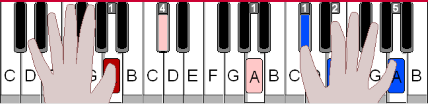
Performing Hands Now
Displayed in Step by Step Mode |
Performing Hands can also be shown in Step
by Step Mode when finger numbers have been created
for the score. This can help with studying hand positions. |
 |
|
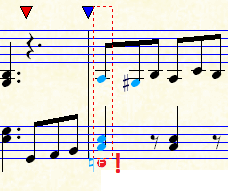
Step by
Step Mode Shows Incorrect Input |
Step by Step mode now shows notes on the score are
they are input from a device to help see mistakes and find the correct position. |
 |
|
Step by
Step Mode New MIDI Shortcut Keys |
New MIDI Shortcut
Keys for synchronizing the playback position to the current Step Position. |
|
Step by
Step Mode New Keyboard Shortcut Keys |
New
Keyboard Shortcut Keys for synchronizing the playback position to the
current Step Position. |
| Improved Metronome
Intro/Lead-in Options |
The Metronome lead-in options now includes a swift
two beat intro option for
playback, for recording and also for
Practise Sessions at start of
first playback or between loops. |
|
| Step by Step Mode
improved in Practise Sessions |
If you are using
Step by Step Mode in a
Practise Session, when you
enter the last notes in the practise range, the Step by Step entry cursor will
move automatically back to the start of the practise session. |
|
|
Highlight Rests
During Playback |
This much demanded feature will
optionally highlight rests during playback as well as notes to help with
counting. |
|
| Save/Restore Session |
You can now Save/Restore the entire last session of
scores you were working on instead of just the last score when opening/closing
MidiIllustrator. |
|
| Per
Score Tempo |
The "Master tempo" is now adjustable and remembered
individually for each open score, allowing you to have different
tempo adjustments for each open score. This tempo is also saved with the
score on closing MidiIllustrator and restored with
the session. |
|
| Performance
Recording New Shortcut |
Alt-R now starts/stops MIDI device recording. |
|
| Zooming Shortcuts
Improved |
Added standard Ctrl+, Ctrl-, Ctrl0 zoom keyboard
shortcuts for better usability and standardised with Internet browsers and other
applications. Original shortcuts continue to work as they did with
previous versions
of MidiIllustrator. |
|
|
Highlight Middle C |
Middle C is now optionally highlighted on the
On-Screen Piano Keyboard for easier
orientation. |
| Improvements
 |
- Full compatibility with Windows 8/8.1.
- Graphic display quality improvements (e.g. antialiasing of fonts).
- Improved handling of custom OS DPI settings (Windows custom text size).
- Rewrite of metronome light timing to address latency issues.
- Printing to BMP improvements.
- Improved handling of invalid note pitches during MIDI import.
- Better validation of MIDI data.
- Clearer metronome sounds.
- Improved handling of unavailable scores accessed from recent scores
list.
- Increased "pre-warning" score open count to 40.
- Improved cursor navigation commands (View Menu).
|
|
MidiIllustrator Player Version 2.00 |
| New Feature |
Description |
| Free MidiIllustrator
Player |
Updated to support all the new features in scores
created using MidiIllustrator Virtuoso and MidiIllustrator Maestro Version
2.00 |
MidiIllustrator Virtuoso Version 2.00
- and -
MidiIllustrator Maestro Version 2.00 (see Maestro only
functions
below
)
|
| New Feature |
Description |
| Finger Numbers
and Automatic Fingering Analysis |
Now you can assign finger numbers to each note
either manually or in a single step with MidiIllustrator's
Automatic Fingering Analysis. Fingering
analysis is customizable to help you assign the right finger numbers easily and
quickly for a selection of notes or the whole score.
Once you have assigned finger numbers to notes several new features become
available:
|
| Enrich your score with Rich Text
Content |
The following MidiIllustrator rich text items can store and display rich text
and OLE objects in your score: Lyrics, Bookmarks, Chord Names, Free Text (New), Expressions (New), Staff Names and Instrument Names (Staff Namings)
and Score Titles
Here are just a few of the formatting features supported by the new rich text
items:
- Font formatting such as font style (e.g. bold, italic,
underline, etc.)
- Images/photos (jpeg, bitmaps etc.)
- Text colors
- File Attachments (even other scores!)
- Hyperlinks (e.g. http://www.MidiIllustrator.com)
- Paragraph Alignment (e.g. Left, Justified, etc.)
- Bullets and line numbering
Easily add objects such as images and other multimedia content to your score. |
| Performing Hands |
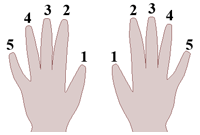 |
Performing Hands are an animation feature of the
On-Screen Piano Keyboard.
Performing Hands can be used both as a learning tool and when composing to see
how the hands move when fingering your keyboard compositions.
Alternatively you can simply enjoy watching your score
performed on the keyboard by MidiIllustrator's talented hands which can perform
even the most technically challenging pieces!
|
| Expressions which
Control
Playback (e.g. Dynamics, Metronome Tempos, Articulations
etc.)
|
Expressions are rich text
notation
which can be customized to suit your needs. Expressions differ from other rich text objects
(such as Free Text items) as they can be associated
with MIDI events such as Tempo, Volume and Pan which alter the performance of a piece
during playback. Common expressions include:
- Dynamics
- Metronome Tempos, Tempo Marks and Tempo Alterations
- Mood Marks
- Articulations
|
| Measure Endings |
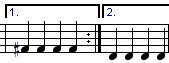 |
MidiIllustrator now supports endings as part of its
comprehensive barline functionality. Endings can be
used with bar repeats to create very efficient scores where only the ending of a
particular passage varies from one verse to the next. You need only score
the common part of one or more verses once and then add any different "endings"
for each verse.
Naturally, MidiIllustrator can observe ending behavior as well as nested
repeat instructions in the score during playback. |
| Quick Print
Parts/Instruments/Staves |
Print any combination of parts, instruments or
staves in a single command, without having to modify the score at all. The
new quick print dialog saves you time when printing. |
| Fully Customizable
On-Screen Piano Keyboard Colors |
The colors used to display
On-Screen Piano Keyboard can be
configured with the Keyboard Options tab in
the Program Options dialog. With this
feature you can change the colors of various parts of the keyboard as well as
the Keyboard
Highlighting Colors used to show which keys are being pressed during
playback. |
| Score Starting Tempo |
As well as
saving a modified master
tempo with a score, you can now set the starting tempo
for any score. |
| Completely New Program Interface |
The entire MidiIllustrator application has been
overhauled with a completely new interface providing greater layout control and
improved accessibility. The new interface also supports several
new color
schemes (themes) and tabbed documents, as well as smart docking for toolbars and special controls such
as the
On-Screen Piano Keyboard and
List Bar. By default, each program in the
MidiIllustrator series uses a different theme. |
| Context Menus |
Key commands are now available as right-click context menus,
providing easier access to the commands you need most often.
Extended Clipboard Actions have also been added to
the context menus. |
| Better Printer Management |
MidiIllustrator's new printer manager stores
information about your preferred printer and also stores print setup details
with each score, such as:
- Paper Orientation
- Paper Size
|
| New Ways to Show
Individual Note Names |
Individual note names can now be displayed along
with finger numbers (new)
in, alongside, above or below each
note or chord in the score. |
|
Finger Numbers Displayed
on the On-Screen Piano Keyboard |
Once assigned to notes in the score, finger numbers
can be displayed on the top of each key during playback. |
| New Dynamic Tempo and
Volume Controls |
The Volume and Tempo toolbar has been integrated
into the brand new MidiIllustrator Status Bar. |
| Extended Clipboard Actions
|
The clipboard now supports the copy and paste for
lyrics, bookmarks, chords, frets, free text and expressions. |
| Tabbed Documents/Scores |
MidiIllustrator scores are now arranged as
'tabs' much like popular applications such as Firefox and Internet Explorer.
Tabs provide easier access and management of your open scores with more than one
score open at a time. |
| Interface Improvements |
Many interfaces have been improved through redesign
and new features for example: Apply Now buttons which update your score instantly when you make changes
to dialog controls (without requiring you to close the current interface
dialog) are now available on the following dialogs:
- Score Options
- Score Titles
- Staff Manager
Staff Manager also has a new layout. |
| New Program Options |
The Program Options dialog includes new tabs:
|
| Extended Insertion and Item Shift functions, with Keyboard
Shortcuts |
Lyrics, bookmarks, chords, frets, free text and
expressions can all be shifted backwards and forwards in the score using new
menu commands and
Keyboard Shortcuts.
|
| Free Text Items |
Free Text Items are rich text
objects which can be positioned anywhere in the score providing a great
alternative to Lyrics and Bookmarks. Moreover these objects can be
anchored to
the measure, page or staff so that they move relative to the score as it
changes. |
| New Metronome Light Options |
- The Metronome Light now displays the beat count numerically in order to
help with counting and rhythm exercises
- The flashing effect of the metronome is now more configurable, allowing
the display of solid colors without flashing effect
|
| Support for MidiIllustrator running on
Linux with WINE |
We have confirmed that MidiIllustrator runs on
Linux using the WINE emulator. |
|
Staff
Manager, Staff Copy Functions Improved |
The Copy Staff command in Staff Manager now copies
Lyrics, Free text and Expressions as well as the rest of the staff notation and
properties. |
| Hide
Upper/Lower Voice Rests |
MidiIllustrator intuitively handles the display of
rests in the notation. This option gives the composer greater control to
optionally hide all automatically drawn upper/lower voice rests allowing for a
more streamlined score. |
| Improved Score Layout |
Better management of staff systems based on clef
size and notation content means that staves are even more compact making even
better use of your screen real-estate. |
| New Program Icons |

MidiIllustrator
Maestro |

MidiIllustrator
Virtuoso |

MidiIllustrator
Player |
| Fixes and Improvements |
- Improvements to barline graphics, and introduced new barline toolbar
buttons
- It is now default behavior to print
score notation colors but not to print
page textures, which are now separate options
- Search the help file for keywords directly from the search box in the main
program menu bar
- New page background textures
- Extra handling of invalid key signatures in MIDI files
- Accidentals no longer repeat on notes which tie from the previous
measure. To show an accidental on a note tied from a previous system/page,
a courtesy accidental
can be used
- Staff instrument names can now be edited in Staff Manager and the Staff
Instrument dialogs
- Re-enabled default editing option "Auto-tie off-beat notes which cross
beats"
- Improvements to Scroll View
-
Added extensions to all file names in List Bar, so the extension column does
not need to be visible to identify file type
-
Improved splash screen dismissal behavior
- Improved handling of improperly structured MIDI files which could result
in some MIDI notes hanging when imported
- Addressed occasional Tooltip flicker when running under Windows Vista
- Updated file associations to work with Windows Vista with UAC enabled
|
|
MidiIllustrator Maestro/Virtuoso/Player Version 1.02 |
| New Feature |
Description |
| Fixes and Improvements |
- Fixed: Vista AutoSave error
Details: MidiIllustrator encountered a sporadic error with default AutoSave
settings when running under Microsoft Windows Vista.
- Fixed: Enharmonic spelling/pitch shift error
Details: Corrected an issue with enharmonic spelling and pitch shift functions
where pitch change was not properly stored.
- Other performance improvements
|
MidiIllustrator Virtuoso Version 1.01
- and -
MidiIllustrator Maestro Version 1.01 |
| New Feature |
Description |
| New Score Samples |
Three new complete score samples are included with
each MidiIllustrator installation program.
- Anitra's Dance by E Grieg
- Amazing Grace by J Newton
- The Entertainer by S Joplin
These scores exploit some of MidiIllustrator's many scoring features and
formatting options, including the use of textures, fonts, lyrics, chords and
notation learning tools such as individual note naming. |

Vista Compatibility |
MidiIllustrator is now
compatible with Microsoft Windows Vista. Several interface improvements mean that all
MidiIllustrator programs run perfectly on the new Microsoft Windows operating
system. |
| New Program Icons and Graphics |
New images have been incorporated into the
different MidiIllustrator products for those customers who have more than one
MidiIllustrator product installed at a time. It is now much easier to
associate various music file types with a given MidiIllustrator application. |

MidiIllustrator Maestro |

MidiIllustrator Virtuoso |

MidiIllustrator Player |
| Trial Printing |
Printing is now fully enabled in the trial versions
of MidiIllustrator Maestro and MidiIllustrator Virtuoso, allowing musicians to
print complete scores whilst auditioning each program. |
| MIDI Device
Volume automatically set |
Some programs erroneously reduce the master volume
of the "Microsoft GS Wavetable SW Synth", which is the default MIDI device used
for playback on many Windows systems. If the Windows 'master' volume for
this device has been set to zero, then no sound will be heard during playback of
any scores which use the device. MidiIllustrator now checks to see if the
Wavetable Synth is the playback device each time playback begins. If it
is, and the current volume is zero, MidiIllustrator automatically increases the
volume to 50%. This action simply reproduces the result you would see if
you manually increased the "MIDI" or "SW Synth" volume value in the Windows
Mixer dialog (also know as "the Windows volume control"). |
| Fixes and Improvements |
- Playlists: Score adding capacity
increased
It is now possible to add an unlimited number of scores to a playlist in a
single action. The previous limit was ~300 scores at a time
- Fixed: Step by Step cursor positioning
reset
Details: This release fixes an issue with Step by Step mode whereby cursor
positioning was occasionally reset to the playback start position during note
'step' auditions whilst using the cursor keys
|
|
MidiIllustrator Player Version 1.01 |
| New Feature |
Description |
| Free MidiIllustrator Player |
With MidiIllustrator Player, you can open, view, print and
playback scores created with any MidiIllustrator product (.mil files).
You can also change the presentation of the score to suit your needs, for
example changing the notation size, or varying the score playback tempo.
MidiIllustrator Player is a free product, and includes
a
small part of the functionality offered by other products in the MidiIllustrator
range.
The MidiIllustrator Player installation program can be freely distributed
among musicians - this is a great way to share your scores with musicians who do
not yet have access to the full versions of MidiIllustrator Virtuoso or
MidiIllustrator Maestro.
Read more about Player in the MidiIllustrator
documentation. |
MidiIllustrator Virtuoso Version 1.00
- and -
MidiIllustrator Maestro Version 1.00 (see Maestro only
functions
below
)
|
| New Feature |
Description |
| Program Modes |
To support a broad range of functionality, MidiIllustrator now has
three distinct 'modes' for working with your scores in very different ways.
Each mode offers a set of particular commands, whilst temporarily hiding other
functions to help you focus on the task in hand.
You simply switch seamlessly between
modes depending on what you want to do with the program.
- Performance Mode allows you to
perform and interact with your songs. In Performance Mode you can create
Practice Sessions, study specific ranges of your scores and use learning
tools such as
Step by Step. Most score editing
functionality is hidden in this mode to allow you to focus on score viewing,
listening and performing.
- Layout Mode is for changing the
dimensions and positions of score objects, such as measures, staves and lyrics.
MidiIllustrator automatically formats the music layout to make good use of
screen 'real estate'. However, if you wish to manage the layout for a
particular measure, page or even the entire score, then in this mode you can
either tweak the layout to simply tighten up the score a little, or you can
make major changes to squeeze as much notation as possible onto a given page.
- Edit Mode is for full-scale score
editing and composition (see
below)
|
| Hide Traditional Staff
Notation / Show Stave Timeline |
MidiIllustrator can hide traditional staff notation on the score and
instead show staves as a much more compact timeline.
This option is very useful for producing and printing song sheets and 'fake
books' which
contain only song lyrics, or perhaps chords and guitar frets. You can
dramatically reduce the number of pages in a score if you do not need to see any
staff notation or melody lines.
|
| Score Titles |
Score Titles are customizable text entries in the
score. You can apply fonts and colors of your choice. The following 'titles' are available:
- Score Title
- Copyright
- Composer
- Reference
- Footer (first page and all remaining pages)
- Header (first page and all remaining pages)
|
| Title Fields |
'Fields' are special text strings which can be inserted into
Score Titles. Fields are automatically populated with
updated score information when titles are displayed or printed (such as page count,
file name, date and so forth...).
|
| Page Textures and Score Backgrounds
|
Add texture and quality to your score manuscript using score
textures which color the page beneath the notation. Custom score
backgrounds allow you to add a personal feel to your MidiIllustrator working
environment. |
| Launch Screen |
The MidiIllustrator 'launch' screen allows you quick and easy
access to the program's most common activities. |
| AutoSave and
Background Saving |
MidiIllustrator will periodically save changes and make backups
of your open
scores, and can save your scores in the background so that you
can continue working uninterrupted. |
|
Store Adjusted Tempo |
If you have adjusted the Master tempo
of the score you are working with, you can store the new tempo with the score
when you save it. |
| Undo/Redo more powerful and
easier to use |
The new undo/redo system allows a virtually unlimited
number of commands to be undone/redone.
Furthermore, MidiIllustrator now attempts to retain the current zoom,
view and mode when undoing/redoing to a previous/future state (rather than
restoring the zoom/view/mode of that other undo state). |
| List Bar |
Several new features have been added to the List Bar:
- Add the current (open) song to the current Playlist with a single click.
- Custom List Font: The List Bar Font button allows you to set a custom font for display of all text in the
List Bar. You can, for example, choose a larger font to make
reading from a distance easier.
- Typing into list cycles list selection to first occurrence of letter typed
and displays selected entry (and so on with next letter typed).
- Your preferred list-column-widths are now stored and restored for each 'tab' in
the list bar. Column 'autosizing' is a new menu option.
- Logged files are now managed more efficiently with automatic removal of
duplicate entries.
- The List Bar Tabs now fully support XP Themes.
- "Windows" tab renamed to "Open Scores" for clarity.
|
| Easier Text Object Entry and Improved
Layout (Lyrics,
Chords, Bookmarks) |
Text entry has been redesigned such that:
- Objects such as lyrics and chords can be edited with great accuracy right in the score so
changes are displayed dynamically as you type.
- New commands and shortcuts
allow you to navigate from lyric to lyric or insert a
new item with just a keystroke.
- Inline text editing accepts clipboard commands like copy and paste.
- Edited text can be selected with mouse drags, double-clicks and other
standard 'word-processor-like' keyboard navigation commands.
- All text items on the score are now better justified for easier reading and better horizontal
alignment (making measure widths more efficient so that more notation can fit
onto each page).
|
| Improved Performance |
MidiIllustrator Maestro and MidiIllustrator Virtuoso operate more efficiently than earlier
versions, with better memory management and faster operation times especially on
large editing operations. |
|
Better MIDI
Device Management for Musicians with Removable MIDI Devices and/or frequent
MIDI System Changes |
MidiIllustrator has a new system for remembering and restoring
your MIDI IN and OUT device preferences. This means that you can swap MIDI
devices (such as USB MIDI ports/adapters) in and out of your system between
MidiIllustrator sessions and MidiIllustrator will still be able to play saved
songs with the device they were originally configured to use, even if the
Windows MIDI device configuration has changed or been reordered.
MidiIllustrator will only reset to the default Windows devices when
the system changes if the MidiIllustrator preferred defaults are no longer
unavailable. Furthermore, a new option for setting staff/track MIDI Playback
(MIDI OUT) devices allows you to keep your saved song playback devices in sync
with your program devices. Simply set each staff to use the "default
playback device" and whenever you change default playback device, your songs
will use the latest default playback device automatically. |
| New
Score Views |
New Scroll View viewing
mode is designed especially for easier editing of scores allowing you scroll
horizontally through the score one measure at a time. |
| New Playback Cursor Options |
New cursor display option allow you to hide the cursor
altogether during playback, but still have pages turned automatically. |
| Audition Current Measure |
Plays just the current measure and then returns the cursor to the pre-playback
position. Very useful if you are making "trial and error" changes to the
notation. |
| Play Imported MIDI Notes as Originally Performed |
Optionally play imported MIDI songs as they were originally
performed, rather than adhering to the notated times displayed on the score
(where the notation may have been 'tidied' for easier reading).
This has always been the default behavior in earlier versions of MidiIllustrator. |
| Advanced Note Selection... |
The new Advanced Note Selection Dialog
allows you to make note selections in the score using many different criteria
(for example selecting only the upper or lower notes in a range of chords). |
| Improved Navigation |
A host of new navigation and
selection commands allow you to move easily
around the score and work with the notation. New object
deletion commands have been added. |
| New Keyboard Shortcuts |
Extensive
Keyboard Shortcuts support all the key
commands, including:
|
| Playback
Latency Configuration - Synchronizing Sounds and Screen Updates |
If you find that when playing scores there is a small delay
between when you hear notes and when you see them
highlighted on the score, or if the cursor appears to move just before the beat,
then you can use this feature to correct for any MIDI Out device "latency" and
synchronize the sound and screen events. |
| MIDI In
Latency Configuration |
Customize MidiIllustrator to work with any MIDI device latency
you experience with your MIDI system setup. |
| Editing Options |
A new group of options allows you to configure your editing
environment, including:
- Chords:
- Auto-Correct manually entered chord names
- Auto-Add frets to manually entered chords
- Selection:
- Include dots when incrementing duration of selection
- Sounds:
- Audition chord when note clicked with mouse
- Audition cursor insertion pitch
- Audition note insertions and clipboard paste
- Audition changes to existing notation
- Notation:
- Auto-tie off-beat notes which cross beats
|
| Auto-Correct Manually Entered
Chord Names |
MidiIllustrator can automatically make corrections to common
spelling and format errors in chord names. |
| Auto-Add Frets to Manually
Entered Chords
|
When manually editing chord names, the corresponding fret for the modified chord name will
be automatically added/updated when chord name editing completes. |
| Barline Dialog and
Repeat Display |
The barline dialog has replaced the barline toolbar commands.
Repeat count on repeat sections can now be shown or hidden. |
| Improved User Interface |
New Time Signature, Clef,
Key, and Transpose Dialogs
for faster, easier changes. Previewing changes is now easier with the "Undo Changes"
dialog button which
immediately removes any changes to the score made using the "Apply" button,
without having to close the dialog and hit "Undo".
Furthermore, many dialogs now remember how they were 'last used' so
that common tasks are easier to perform as dialog options are automatically
configured when the dialog is opened.
Time Signature Dialog new features:
- A comprehensive set of options to add and modify existing meter values.
- MidiIllustrator can intelligently
reorganize music in the score as necessary to allow time signature
insertions which would otherwise upset the existing rhythmic structure of the
music.
Transpose Dialog new features:
- Easier to use with numbered steps, now with quick "Octave Up/Down" buttons.
- Existing Chords/Guitar Frets automatically recalculated (based on the
newly transposed notation) when the transposition is complete.
Clef and Key Dialogs:
- New key and clef selection controls for faster score changes.
|
| Import Options |
New options to control how MidiIllustrator manages MIDI tracks
(staves) during import or editing. |
| Playback Options |
Playback Options are now program specific and no longer score
specific. |
| New Horizontal Scroll Bar |
New Horizontal scrollbar allows horizontal scrolling in Page
View (as well as page number changing in Window View). |
| Menus and Toolbars |
Menus and Toolbars have been reorganized to allow easier
orientation of the program. All the commands from previous versions of
MidiIllustrator are still available but some have relocated to new
menus/toolbars/screen positions (for example, the 'Setup' menu is now the
'Tools' menu!). |
|
MidiIllustrator Maestro Version
1.00 ONLY |
|
| New Feature |
Description |
| Composing and Editing with Edit Mode |
Beyond the 'single-step' smart notation power of MidiIllustrator
Virtuoso, MidiIllustrator Maestro introduces a
suite of composition commands:
|
|
Power Edit Mode |
Power Edit Mode allows you to quickly edit
large areas of the notation, applying changes to whole measures or beats, and
moving or copying multi-staff selections of notation from one part of the score
to another with drag/drop
operations (or to another score altogether using
Copy/Cut/Paste
Clipboard Functions). |
| Score Templates and the quick
start Default Score Template |
Score templates contain all the foundations necessary for creating a new
score in one step. You can easily create a template with your favorite
properties in order to save time in the future when creating new compositions.
The MidiIllustrator installation package contains some basic templates to get
composers up and running. |
| Record Your Performance |
The record tool allows you to capture a real time performance from a connected MIDI device.
The performance is instantly converted to notation using your
Recording Options rules and is added
directly to your score. |
|
Note Entry via the
On-Screen Piano Keyboard |
This tool allows you to enter single notes or whole chords directly into your score using the On Screen Piano
Keyboard. |
|
Chord Entry via a
Connected MIDI Device |
Enter single notes or whole chords directly into your score using a connected MIDI device. |
| Tap In Rhythms with the PC
Keyboard |
This tool allows you to enter single note rhythms into your scores using the computer
keyboard. You can quickly and easily capture the rhythm of
a tune without having to worry about playing the right notes or assigning
complex note durations individually. |
| Copy/Cut/Paste
Clipboard Functions |
Use the MidiIllustrator clipboard to cut, copy and paste notation from
one part of the score to another, or even to another score. |
|
Copy
Complete Staves |
Make identical copies of the
selected staff (including staff name, instrument, MIDI properties etc). |
| New Entry Item Toolbar |
The Entry Item toolbar forms part of the Editing
Palettes and is for
setting note and rest entry qualities. |
| Recording Options |
Recording options determine how MidiIllustrator transcribes live MIDI
performances recorded into the program. You
can also determine metronome settings for the recording session. |
| Accidentals,
Enharmonic Spelling and
Individual Courtesy
Accidentals |
Note accidentals as well as enharmonic spellings can be set for each note, and
individual courtesy accidentals can be chosen (as well as the global 'Show
Courtesy Accidentals' option of earlier versions of MidiIllustrator).
Courtesy accidentals are now bracketed for clarity. |
| Tuplet Note Entry |
MidiIllustrator has always identified tuplets accurately when generating scores
from MIDI files. MidiIllustrator
Maestro also supports the entry of several tuplet types. |
| Voice Guide Rests |
In general, MidiIllustrator
automatically fills
all the silence in a measure with rests. Virtual voice 'guide' rests are
shown to facilitate multi-voice note entry.
|
| MidiIllustrator
Version 2.01 |
| |
- Improved third party PDF (portable document format) support.
Improved List Bar Playlist functions for handling scores not saved in a
‘playlist ready’ state.
- Fixed: Font redraw quality.
Details: Some notation was not redrawn correctly when Advance Page Turn was
deactivated, causing periodic ‘blurring’ of notation until screen redrawn.
- Fixed: Bookmark reference updates on Practice Sessions.
Details: Practice sessions containing bookmark ranges were not properly reset
when measures containing bookmarks were removed.
- Fixed: Pitch wheel event order incorrect.
Details: Some events processed in wrong order resulting in incorrect
application of subsequent note pitches.
- Fixed: Hidden tracks being selected causing "Step by Step" mode problems.
Details: Tracks could still be selected when hidden causing cursor to vanish
temporarily.
- Fixed: Measure contents deletion error.
Details: Notes crossing deleted measure range were not completely deleted with
measure range removal
- Fixed: MIDI Notes Off command not sent at correct time.
Details: ‘All Notes Off’ MIDI command sent too soon after MIDI stream
completed, causing notes to continue sounding after playback ended on some
external MIDI devices.\
- Minor bug fixes to score layout
- Updated MidiIllustrator Setup Installer.
- Updated product documentation.
|
| MidiIllustrator
Version 2.00 |
| New Feature |
Description |
| List Bar |
The List Bar contains four powerful tools for managing and working with your music, including:
- Playlists – full featured song jukebox! Create a list of songs and
MidiIllustrator will open, show and play each in turn.
- Browser – Access your music quickly with this on-screen song folder viewer.
- Score Log – Keep staff of your score viewings and practice sessions.
|
| Smart Page Scrolling |
MidiIllustrator can turn the pages of the score using special graphical effects to scroll, split and fade the screen as the music is played out, showing both the current passage and the next passage (from the next page) at the same time. You need never take your eyes off the score when reading ahead; better than sheet music! |
| Full Screen |
See more of the score in Full Screen Mode! Maximize the use of your screen and fill it with the score - and nothing else. |
| “Listening” Step by Step Input Analysis |
The new “Jump to User Input” option enables MidiIllustrator to closely monitor your input from a connected MIDI Instrument. When you move around from one passage to another whilst playing a piece,
MidiIllustrator will automatically move the Step by Step cursor to the new input position.
Furthermore, you can play through mistakes, and MidiIllustrator will still know the exact position you are reading and playing from, and will automatically show that part of the score, turning the pages as necessary.
|
| 6 New Clefs |
MidiIllustrator now supports the following clefs:
- Treble Clef
- Bass Clef
- Alto Clef
- Tenor Clef
- Octave Adjusted Treble Clef (Higher)
- Octave Adjusted Treble Clef (Lower)
- Octave Adjusted Bass Clef (Lower)
- Neutral Clef
|
| Edit the Time Signature |
Intelligent time signature editing allows you to make changes to the underlying time signature of the score without accidentally distorting the score layout. |
| Editable Barlines including Repeat sections |
Decorate your score with many different barline styles, including nested repeat sections which can be applied by
MidiIllustrator during playback. |
| Print Scores to Image Files |
Print your scores to bitmaps and share them with others, or open them in other applications. |
| Split Measures |
Allows you to split the current measure in two (or, insert a barline). |
| Join Measures |
Allows you to instantly join the current measure to the next measure. |
| New Toolbars: Editing Palettes |
Context sensitive toolbars: only those editing toolbars which are useful at a particular time are shown, leaving room for more of the score to be shown on the screen. |
| MIDI Instrument Routing |
Create powerful rules stating which MIDI playback device and channel you would like to use for the different instruments in your songs. Routings are applied automatically when you open a song, saving you time. |
| MIDI Shortcut Keys |
Access many of MidiIllustrator’s functions quickly and easily using your connected MIDI instrument (such as a MIDI keyboard) as a ‘remote control’. |
| Print Options |
New printing options:
- Print odd or even pages
- Print just the current page
- Collate copies enabled
|
| Adjustable Step by Step Playback Position |
As of version 2.0, you can now set a different playback starting position when you want
MidiIllustrator to accompany you during Step by Step Mode. |
| Improvements to Tasks: Convert Score to 'Two Hand Piano' |
This popular task has been improved to automatically handle drum staves and non-piano instrument staves. The new Tasks Options tab in Program options allows you to configure task
behavior for better task results. |
| New Interface Optimized for Windows XP |
New toolbar buttons and improved interface layout in version 2!
The latest version of MidiIllustrator also supports Windows XP Themes (for those running
MidiIllustrator on Windows XP), integrating MidiIllustrator fully with the look and feel of the XP environment.
|
| Individual Note Names |
MidiIllustrator version 2.0 introduces a new way to show the name of each note on the score. You can now choose to have the note name placed inside the note instead of to the left. Under different circumstances (such as printing vs. window view), one layout may be easier to read than the other. |
| Show Individual Note Accidentals |
You can choose to have the signature repeated for each and every note on the score, making it much easier to remember to sharpen or flatten a particular note when performing a piece. |
| Full Support for Foreign Language Characters |
MidiIllustrator can now display lyrics and other text in all languages, including special characters and accents. |
| Backwards Compatibility |
MidiIllustrator version 2.0 is completely compatible with earlier versions of
MidiIllustrator and can seamlessly open, edit and save scores generated in
MidiIllustrator version 1.xx. |
| Show all staves Command |
Shows all staves instantly (even empty ones). |
| Hide Empty Staves |
Hides all empty staves instantly. |
| MidiIllustrator
Version 1.02 |
| |
- Improved
MIDI playback performance and application startup time.
- Fixed "Step by
Step Note Sounds" problem
Details: Application could occasionally hang when cursor movement triggered
playback of groups of "Step" notes in Step by Step mode.
- Fixed missing
updates when Status Bar hidden.
Details: When Status Bar hidden, updates were not made to context Menus
(Insert, Notes etc) reflecting any current item selection. Also Status
Bar and Menus not always redrawing properly when Status Bar toggled on/off.
- Updated product
documentation.
- Updated
MidiIllustrator Setup Installer.
|
| MidiIllustrator
Version 1.01 |
| |
- Fixed conflict between Metronome and drum tracks.
Details: Muting channel 10 tracks also muting Metronome when
both are using MIDI channel 10 for playback.
- Fixed problem with Explorer file associations (registered version only).
Details: Double-clicked MIDI files not always opening unless
MidiIllustrator already running.
- Fixed MIDI playback error incurred on some PCs during practice session
playback loops.
Details: Application could occasionally hang between finishing
one playback loop and beginning another.
- Fixed empty MIDI track overload during import.
Details: Some MIDI files containing many empty tracks causing overload
during rest creation phase of import. Excessive empty tracks now dropped
during import.
- Fixed some Windows ME/98 compatibility issues.
- Fixed other minor bugs, including some tie note editing errors and track
tools functionality.
- Updated product documentation.
- Updated MidiIllustrator Setup Installer.
|
| MidiIllustrator
Version 1.00 |
First public release.
|